Does your car screen have Android Auto
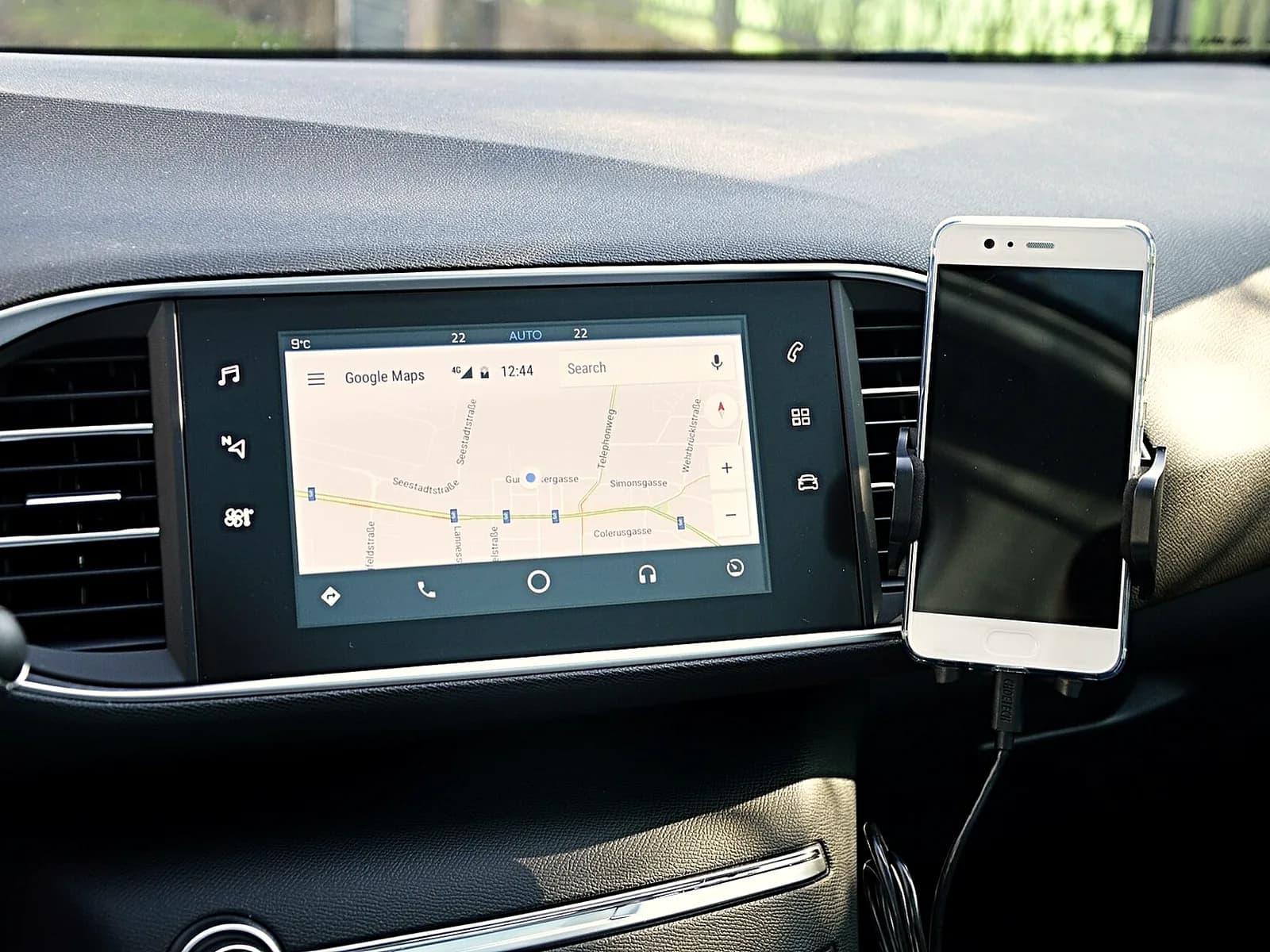
Android Auto shows navigation, calls, messages and music from an Android phone on the car screen. It only works on a car screen that supports it. A USB port in the car does not mean the screen has it. First check this:
- In the car screen menu, look for Android Auto and check that it is switched on.
- Turn the car screen off and on again, then connect the phone again.
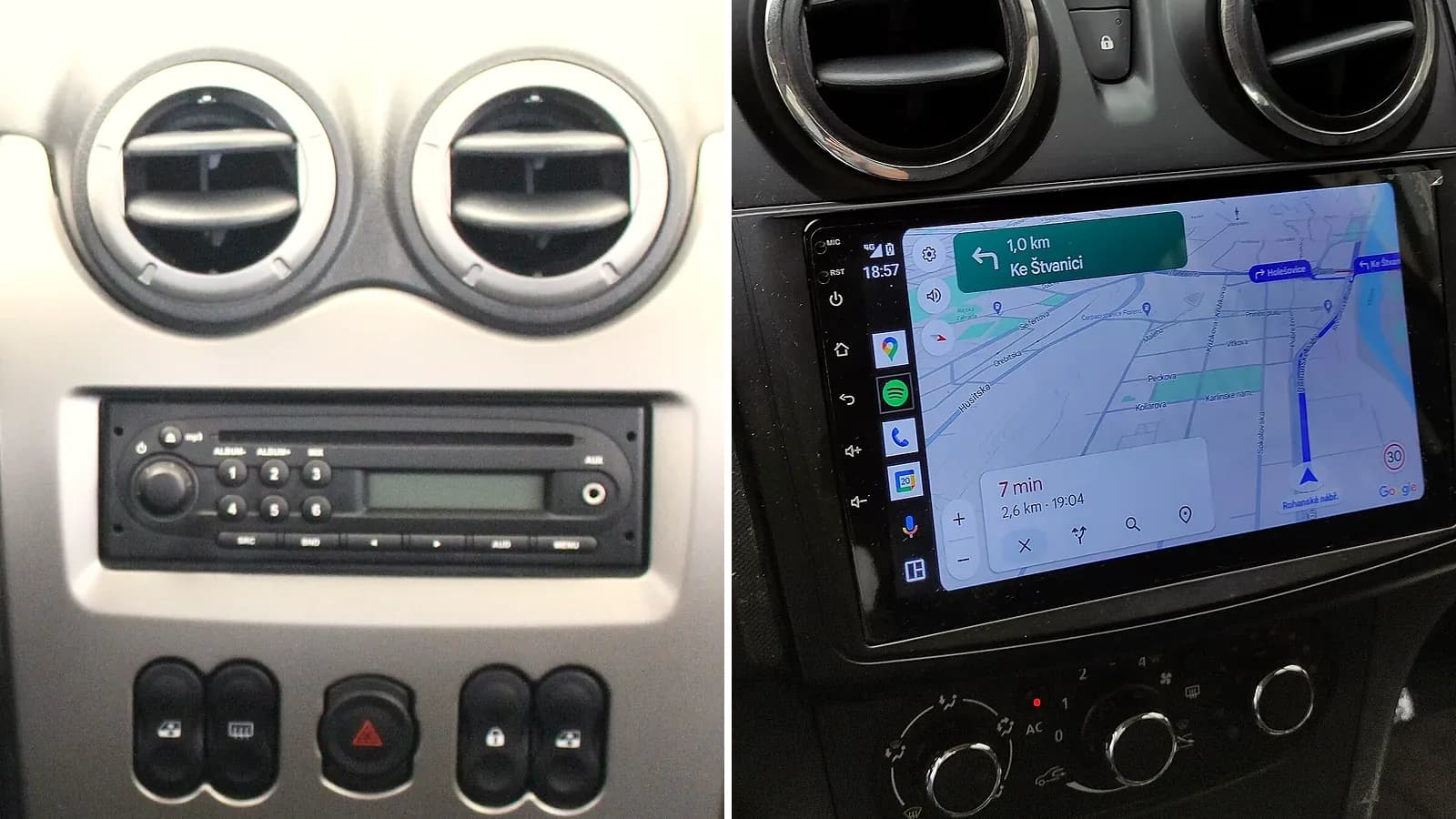
If there is no Android Auto in the menu, the screen does not have it or has it locked. Many factory screens have Android Auto and CarPlay built in, but locked. We switch them on, without a new screen. More about Android Auto and CarPlay activation
What the screen gets from activation: depends on the screen
- Some screens: both Android Auto and CarPlay.
- Some screens: only CarPlay. Then Android Auto comes with a new head unit.
Android Auto not working over a cable
If Android Auto used to work and now it will not, replace the USB cable. A new cable will likely fix it, because not every cable works with every car.
- Use a good-quality cable shorter than 1 metre.
- Try the cable that came with the phone.
- Do not use an extension cable or a USB hub, the part that turns one USB port into several.
What the phone needs
- Android 11 or newer. You see the version in the phone settings, under About phone, then Android version.
- A phone that does not run Android Go. Android Auto does not work on it.
- An active mobile data plan. When you connect for the first time, also mobile signal.
- For a wireless link, also 5 GHz Wi-Fi.
Connecting Android Auto for the first time
Connect the phone while the car is parked and the car screen is on.
With a cable
- Plug the cable into the car USB port, then into the phone.
- Follow the instructions on the phone and car screens.
- If the phone asks you to update Android Auto, accept.
Wireless
- On the phone, turn on Wi-Fi and location. Then open Bluetooth in the phone settings and turn it on.
- On the steering wheel, press and hold the voice command button to open the menu for a new phone on the car screen. If the menu does not appear, the car manual says how to open it.
- Pair the phone with the car over Bluetooth, following the instructions on the phone and car screens.
- Android Auto starts by itself within a few seconds. If it does not, tap Android Auto on the car screen.
If the phone will not connect by cable or wirelessly, and the cable and phone are fine, send us the make, model, year and a photo of the screen, and we'll tell you whether the screen has Android Auto.
It works in one car, but not in another
When the phone is already connected to one car and will not connect to another, do this:
- Unplug the cable from the phone.
- In the phone settings, open connected devices, then connection preferences, Android Auto and previously connected cars.
- In the menu at the top right, choose to forget all cars.
- Plug the phone into the car again.
Also check that the other car has Android Auto and that it is switched on in the screen menu.
The Android Auto app is not downloaded separately
Android Auto is built into the phone, so you do not look for it in the app store.
If an app from your phone does not show on the car screen, open it once on the phone. Samsung phones disable apps you have not used for a while, to save battery. To stop this from happening again, in the battery settings turn off disabling or putting unused apps to sleep.
Voice commands and sound
Android Auto listens to voice commands through Gemini or Google Assistant, the voice assistant on your phone.
You call the assistant in three ways: say "OK Google", press and hold the voice command button on the steering wheel, or tap the microphone symbol on the car screen.
- Press and hold the voice command button on the steering wheel until you hear the tone. If you let go too early, you may exit Android Auto.
- Start speaking after the tone. The tone means Android Auto is listening.
- Keep the noise in the car down while you speak.
- In some cars the volume for navigation, music and voice is set separately. The car manual says how.
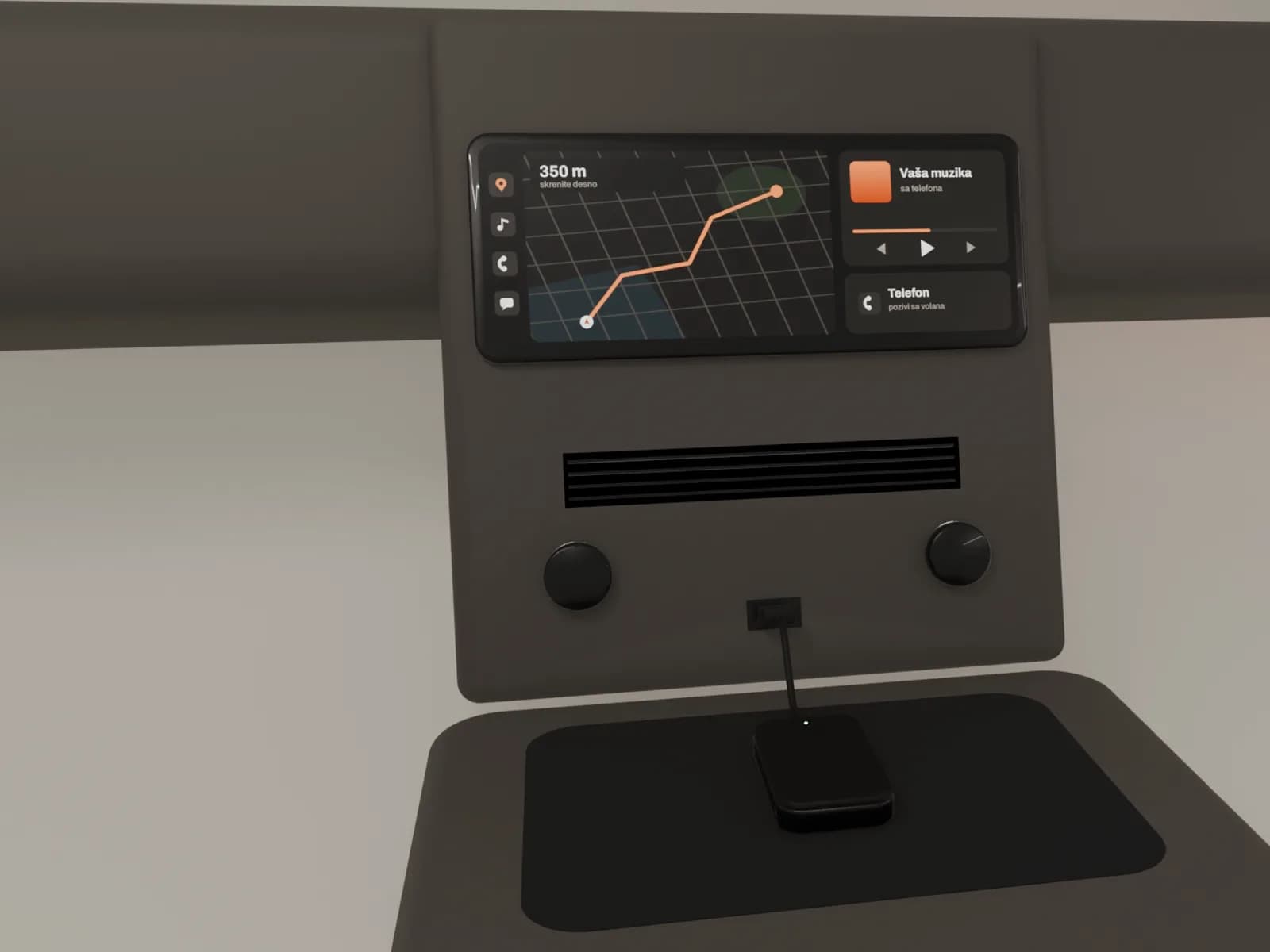
On aftermarket multimedia, Android Auto hears you through its microphone. When it does not understand you, we check that the microphone works. More about multimedia installation